Introduction
Canva face swap is a built-in feature for anyone already working inside the Canva design platform. It lets you swap faces in photos directly within your design workflow — no third-party tool required. But the multi-step process and account requirement aren’t always the fastest path to a clean result. If you’re looking for a free face swap with no sign-up, EasyFaceSwap offers a simpler alternative: no account, no setup, completely free. This guide covers both options honestly so you can pick what fits your needs.
How to Use Canva Face Swap (Step by Step)
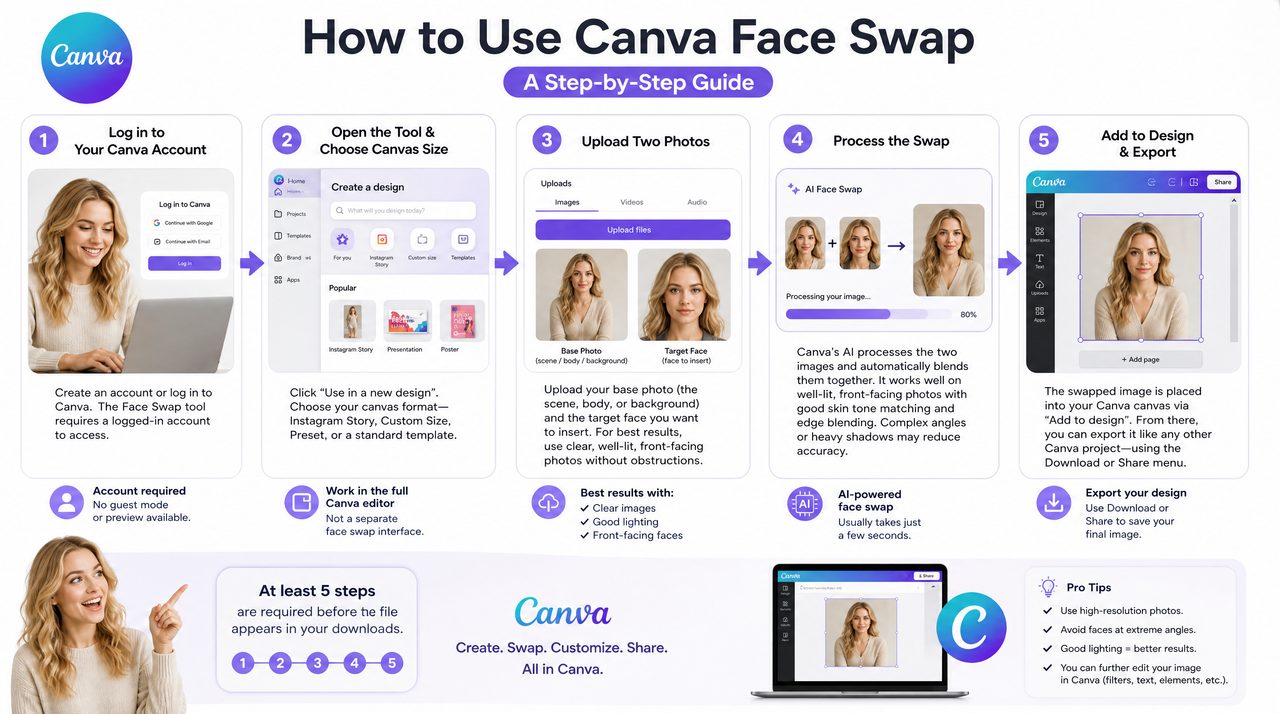
Here’s exactly what the Canva face swap process looks like from start to finish:
Step 1: Log Into Your Canva Account
A Canva account is required before you can access the Canva face swap feature at all. If you don’t have one, you’ll need to sign up first. There’s no guest mode or preview — the tool is gated behind login.
Step 2: Open the Tool and Choose a Canvas Size
Once logged in, click “Use in new design.” Canva will ask you to choose a canvas format — Instagram Story, custom dimensions, a preset size, or a standard template. From this point, you’re working inside Canva’s full design editor rather than a dedicated face swap interface.
Step 3: Upload Your Two Photos
Upload your base photo — the scene, body, or background you want to keep — and the target face you want to place into that photo. For best results, both images should be clear and well-lit, with the face front-facing and unobstructed.
Step 4: Process the Swap
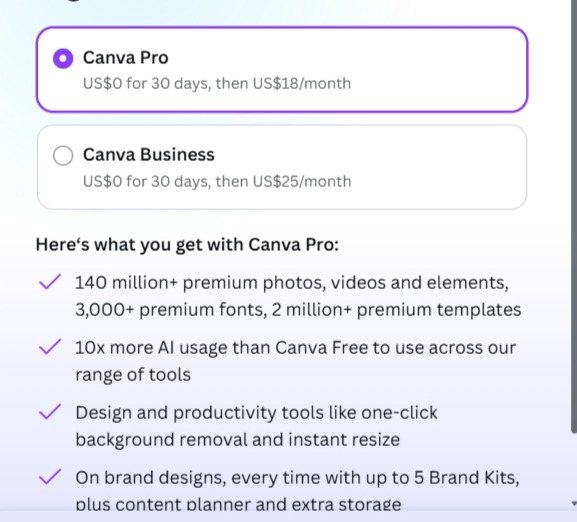
Canva’s AI processes the two images and blends them automatically. The output quality is solid for standard portraits — it handles skin tone matching and edge blending competently on well-lit, front-facing shots. Complex angles or heavy shadows can reduce the accuracy of the result.
Step 5: Add to Design and Export
The swapped image doesn’t download directly. Instead, it gets placed onto your Canva canvas via “Add to Design.” From there, you export it like any other Canva project — through the download or share menu.
That’s five steps minimum before you have a file in your downloads folder.
What We Found When We Tested It
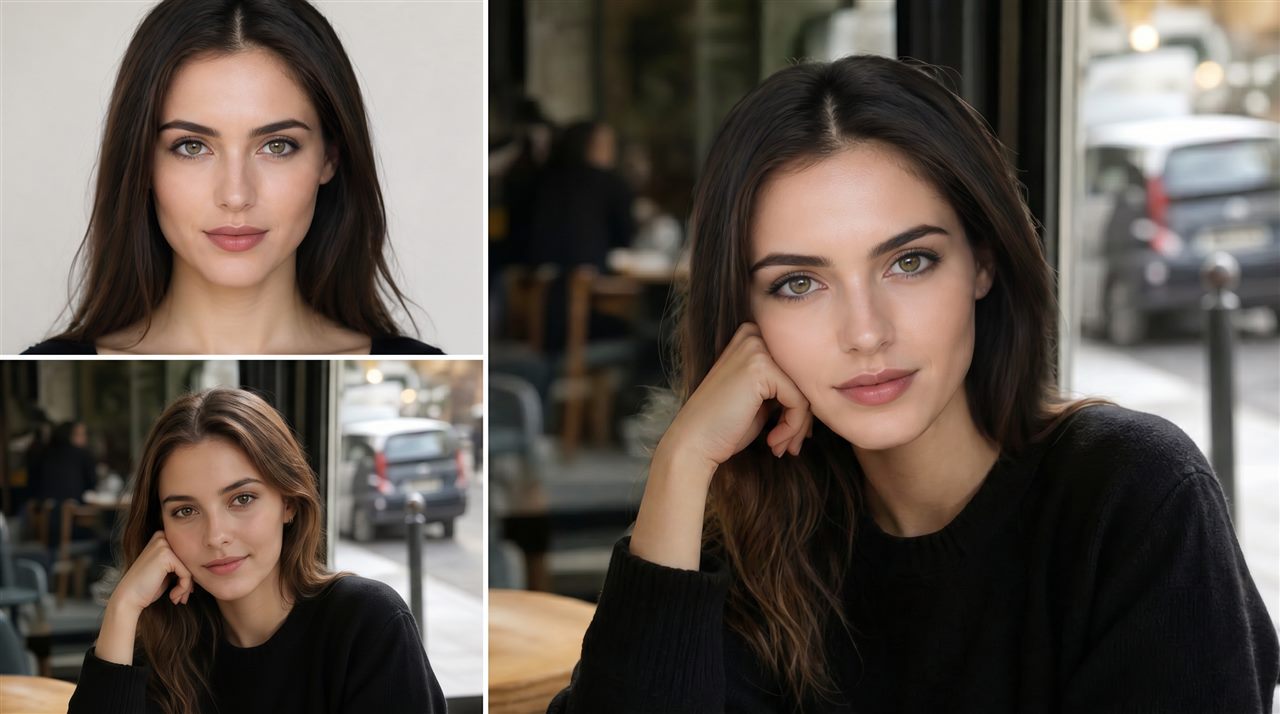
We ran Canva face swap using a standard frontal portrait — good lighting, plain background, subject facing the camera directly — as the source face, and a lifestyle photo as the target. We also tested with a slightly angled shot to see how the AI handles non-ideal input.
Results on the standard portrait: Skin tone blending was clean and the edge transition around the hairline was natural. For a well-prepared photo pair, Canva face swap produces a convincing result that holds up at typical social media resolution.
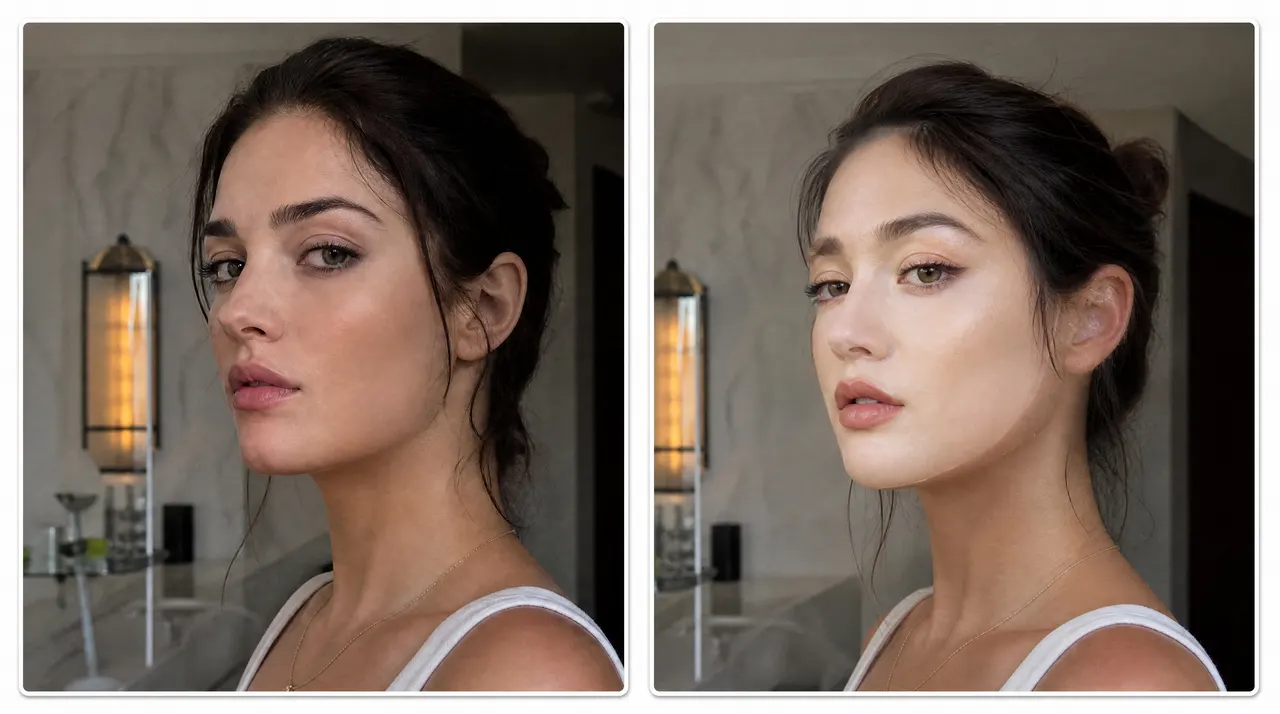
Results on the angled shot: Noticeably less accurate. The blending around the jaw and ear area showed visible seams, and the skin tone match was slightly off under mixed lighting. This is consistent with what Canva’s own guidance suggests — the tool is optimised for front-facing, evenly lit photos.
The workflow friction: The five-step process — log in, choose canvas, upload, process, add to design, export — added meaningful overhead compared to dedicated tools. For a single swap as part of an existing Canva project, it’s manageable. As a standalone task, it felt like more steps than the result required.
What Canva Face Swap Does Well
For users already embedded in the Canva ecosystem, the face swap feature is a genuine convenience. You don’t need to open a separate tool, export an image, re-import it, and start over. If you’re building a social media post, a promotional graphic, or a meme template inside Canva, incorporating a face swap directly into that workflow saves real time.
Canva also integrates additional refinement tools alongside face swap. If the blended result needs polishing, Magic Edit lets you adjust elements via text prompts, and Magic Eraser removes unwanted background clutter — all within the same editor. No other tool on this list offers that kind of design-layer integration.
The Honest Limitations of Canva Face Swap
It’s photo-only. Canva face swap currently supports photos only — not video. If you need to swap faces in a video clip, you’ll need a separate platform.
It requires a credit purchase after your initial 2 free uses. Canva explicitly states: “you only get two free uses of the app — afterwards, you need to purchase more credits to continue using it.” 2 free uses is enough to test the feature, but not enough for any meaningful volume of work.
It adds steps that a standalone tool wouldn’t. The result lands on a Canva canvas — not in your downloads folder. You export it from the editor like any other Canva file, which adds steps if a face swap image is all you needed.
Data privacy is not explicitly addressed on the face swap feature page. Canva’s main privacy policy applies broadly, but there’s no specific statement about how uploaded face photos are handled after processing.
| Feature | Canva Face Swap |
|---|---|
| Output quality (standard portraits) | Clean, natural blending |
| Design ecosystem integration | Strong — Magic Edit, Magic Eraser, templates |
| Template library | Extensive — thousands of social media formats |
| Account required | Yes |
| Video face swap | Not supported — photos only |
| Direct image download | Via canvas export only |
| Free uses | 2 free uses; more require credit purchase |
| Mobile support | Yes (browser-based) |
Why Many Users Look for a Simpler Alternative
The common thread among users who feel let down by Canva face swap isn’t output quality — it’s the workflow. Most people searching for a canva face swap alternative have a simple goal: upload two images, get one result, download it. Canva’s design-editor structure adds a canvas step, an export step, and a login requirement that aren’t necessary for that goal.
For occasional users, the 2-use limit is also a meaningful constraint. If both free uses go on test photos, you’re already looking at a credit purchase before producing anything useful.
EasyFaceSwap: A Dedicated Free Face Swap Alternative
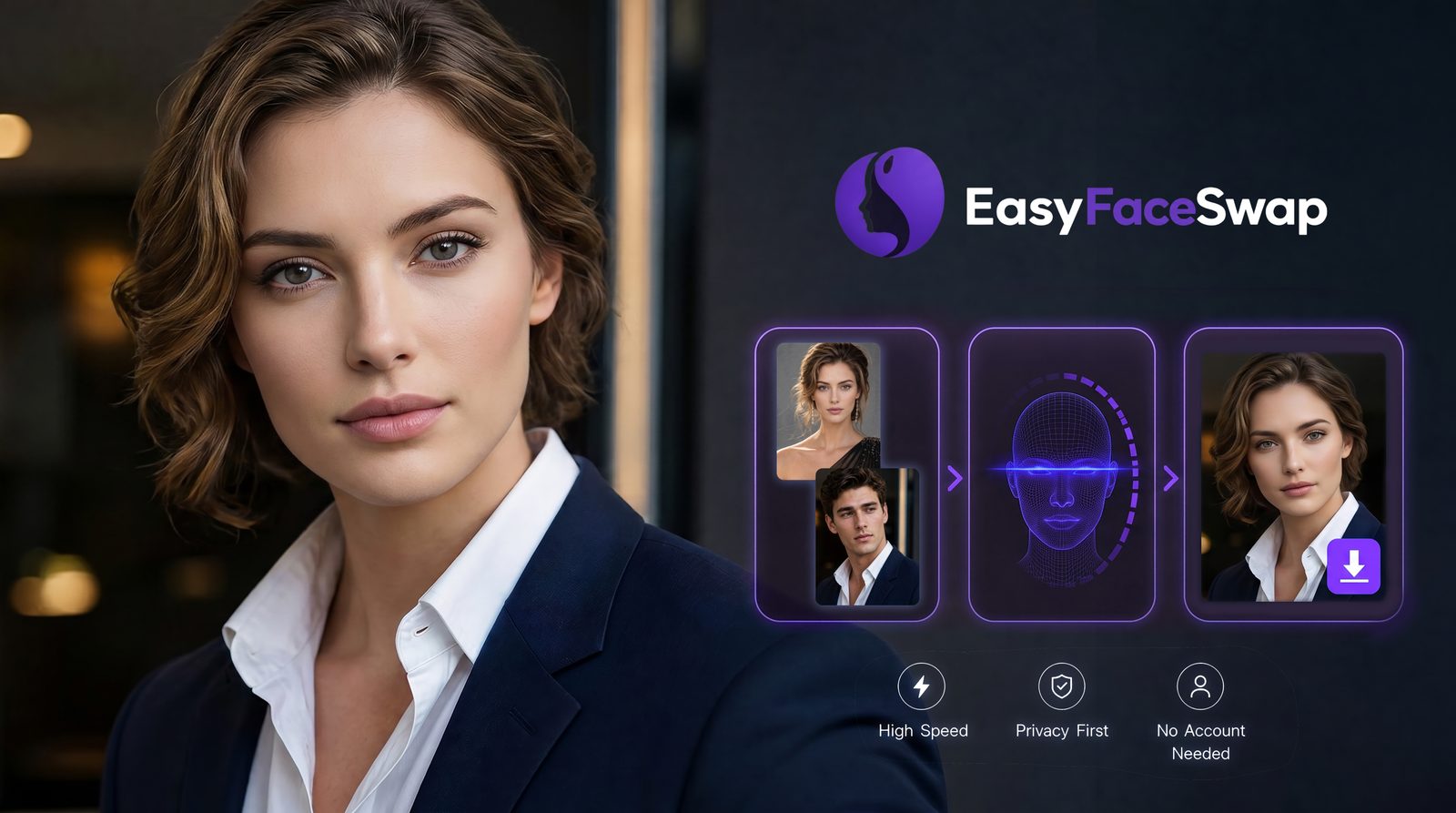
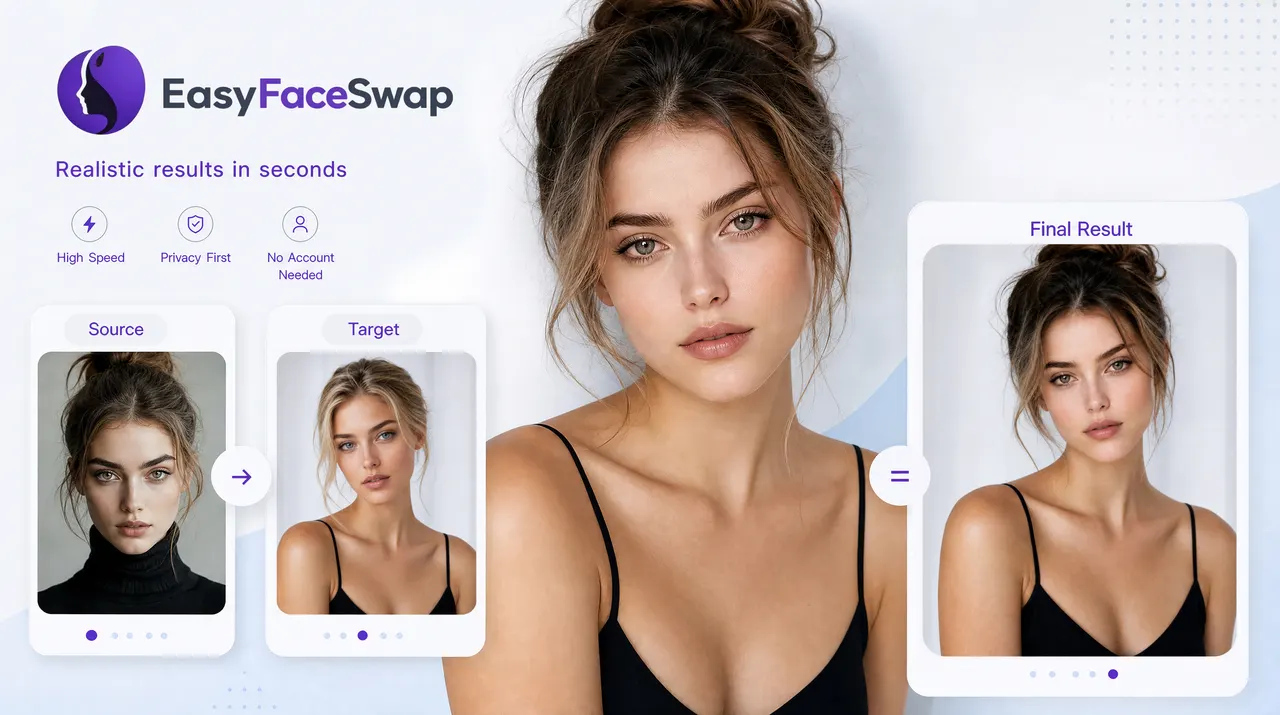
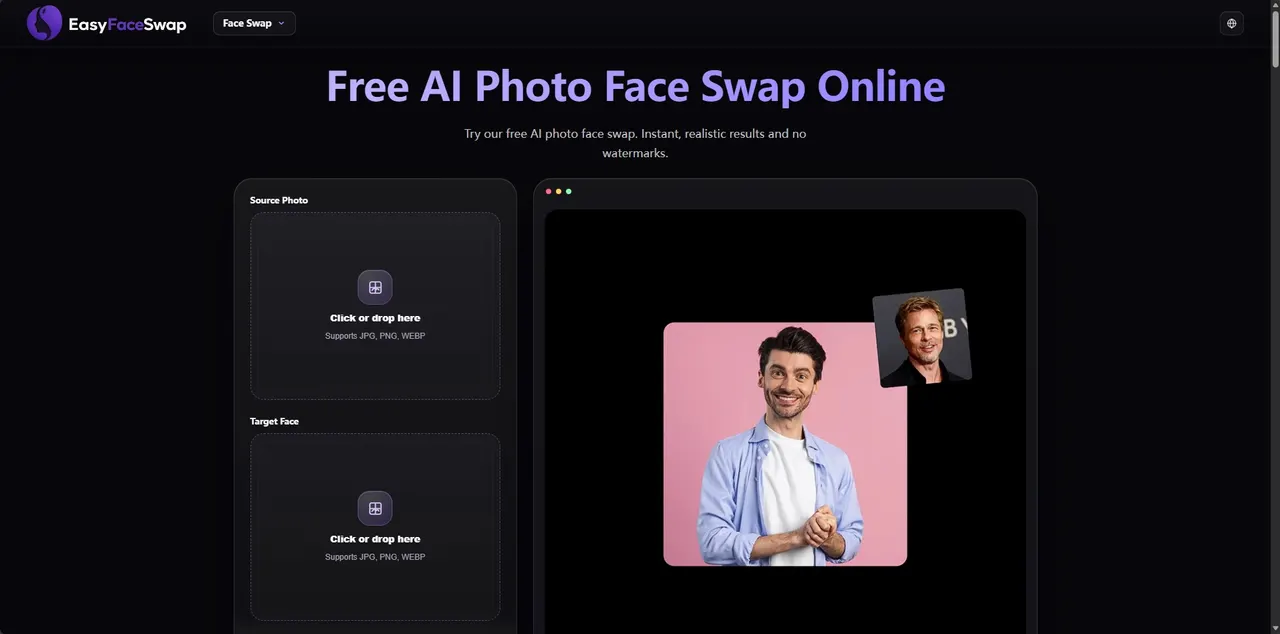
EasyFaceSwap was built for the most direct version of the face swap workflow: open the page, upload two photos, generate, download. No account, no canvas size selection, no multi-step export.
We tested EasyFaceSwap with the same photo pairs used on Canva. On the standard frontal portrait, the output was HD and watermark-free — skin tone blending was comparable to Canva’s result, with a clean hairline transition. On the angled shot, EasyFaceSwap handled the jaw and ear blending more smoothly than Canva did, with less visible seaming under mixed lighting. Download was immediate — no canvas step, no export menu.
How It Works in 3 Steps
Step 1 — Upload your photos: Go to EasyFaceSwap and upload your source face and target photo. No login required.
Step 2 — Generate the swap: Click generate. The AI handles face detection, skin tone matching, and edge blending automatically.
Step 3 — Download your result: Your HD, watermark-free photo face swap downloads directly — no canvas, no export menu, no extra steps.
Free Access, Output Quality, and Privacy
EasyFaceSwap’s free tier covers regular personal use, making it a convenient option for casual users who want to create face swaps without paying for a subscription.
Uploaded photos are automatically deleted from EasyFaceSwap’s servers immediately after processing. No retention window, no model training, no account linking your uploads to a profile — because there is no account.
EasyFaceSwap will soon support video face swapping—a feature Canva’s built-in tool doesn’t offer—and it runs directly in the browser on both desktop and mobile, with no app download required.
Canva Face Swap vs EasyFaceSwap: When to Use Which
These two tools serve genuinely different use cases. Here’s how they compare across the dimensions that matter most, and when each one is actually the right choice.
| Canva Face Swap | EasyFaceSwap | |
|---|---|---|
| Account required | Yes | No |
| Free uses | 2; more require credit purchase | Generous for everyday use |
| Design ecosystem (templates, Magic Edit) | Strong | Not applicable |
| Steps to downloadable result | 5–6 steps | 3 steps |
| Direct download | No (canvas export) | Yes |
| HD output | Yes | Yes |
| Watermarks | No | No |
| Video face swap | No | Yes |
| Data privacy | Not specified | Auto-deleted after processing |
| Learning curve | Moderate | None |
Use Canva face swap when you’re already building a design inside Canva — a social post, a flyer, a campaign asset — and want to incorporate a face swap without switching platforms. Its real advantage is design-layer integration: Magic Edit, Magic Eraser, and thousands of templates are all one click away. For Canva Pro users already in that workflow, it’s a natural fit.
Use EasyFaceSwap when you just need a photo face swap — no design project, no account, no setup. Upload, swap, download, done.
FAQ
Do I need a Canva account to use face swap?
Yes. A Canva account is required before you can access the canva face swap feature — there’s no guest mode or preview. If you’d prefer to skip account creation entirely, EasyFaceSwap requires no sign-up at any point.
How many free uses does Canva face swap include?
Canva provides 2 free uses of the face swap feature. After those are exhausted, you need to purchase credits to continue. This is confirmed in Canva’s own FAQ on the feature page.
Can Canva face swap videos as well as photos?
No. Canva’s built-in face swap tool supports photos only. EasyFaceSwap supports both photo and video face swapping if you need that flexibility.
Is there a face swap tool that’s free with no sign-up?
Yes —EasyFaceSwap is free to use with no account, no registration, and no credit system. Open the site, upload your photos, and download your result without entering any personal information.
Is EasyFaceSwap safe to use?
Yes. EasyFaceSwap automatically deletes all uploaded photos from its servers after your result is generated. Your images are not stored, not shared, and not used for model training. There’s also no account, so no personal data is collected in the process.
Conclusion
Canva face swap is a genuinely useful feature — but it’s built for designers already working inside Canva, not for anyone who just needs a quick standalone swap. Where it genuinely leads is design integration: templates, Magic Edit, and a full creative ecosystem that no dedicated face swap tool can match.
For simplicity — no login, no design canvas, no credit counter — EasyFaceSwap is the more direct choice for a free face swap with no sign-up. Upload two photos, get a clean HD result, download it. No setup, no account, and your photos are deleted after processing.
Try EasyFaceSwap free — no sign-up needed →