Face swap is everywhere right now. Scroll through TikTok or Instagram for five minutes and you’ll probably see someone’s face swapped into a movie clip or a meme. Many people use Pixlr to create that content. It’s one of the most popular photo editors online, since it added an AI face swap feature to its toolkit.
Pixlr is easy to find and free to try, so a lot of people start there without looking anywhere else. But is it actually the best photo face swap experience out there, or just a familiar name? We tested it ourselves to find out, and we’ll also show you great alternatives in case Pixlr doesn’t fit what you need.
What is Pixlr?
Pixlr is a browser-based photo editor that’s been around since 2008. It’s not built around face swap. It’s a full editing suite, closer to a lighter, free version of Photoshop, with AI tools layered on top.
Face swap is just one small piece of a much bigger toolbox. That matters, because it affects how deep the feature actually goes. A platform built around a dozen tools usually can’t polish every single one to the same level as an app built for just one job.
What Can You Do With Pixlr?
Pixlr’s main draw is its all-in-one editing suite. Here’s a quick look at what else it offers, beyond face swap:
- AI Image Generation
- AI Photo Editing and Enhancement
- AI Video and Audio Creation
- Photo face swap tool
- No GIF face swap mode either, despite what some other write-ups suggest
That’s a narrower feature set than the marketing pages imply, so we’ll break down exactly what you get in the next section.
Pixlr Face Swap Review: Features, Results & Limitations
How We Tested Pixlr Face Swap
We ran our own tests instead of just reading Pixlr’s marketing page. Here’s what we did:
- Swapped faces on several photos, some front-facing and some at an angle
- Ran the same source face across a few different target photos to check for consistency
- Looked for a GIF or video face swap option to see if it existed beyond photos
- Tracked how many credits each swap used
We’re basing our review on what we actually saw during these tests, not just what Pixlr claims on its website.
Pixlr Face Swap: Features and Quality
On photos, face swap pixlr results were solid for straightforward, front-facing shots. The AI lined up facial features, matched skin tone reasonably well, and blended the edges without too much obvious seam. Lighting stayed close to the original photo, which helped the swap look natural.
Angled photos were a weaker spot in our testing. When the source or target face was turned even slightly, the blend got less convincing. Edges around the jaw and hairline showed more visible artifacts.
Here’s the bigger limitation we ran into: Pixlr only supports face swap on photos. There’s no GIF face swap and no automated video face swap on its main web platform, despite what some other reviews claim. It has a separate AI Video Generator for creating short video clips from a prompt, but that’s a different tool, and it’s not built to take a video you upload and swap a face across it. If a “pixlr ai face swap” result on video or GIF is what you’re hoping to find, it isn’t there.
Each photo swap cost us 2 credits, which is worth knowing before you plan out how much you can do on the free plan.
We didn’t find a dedicated multiple face swap mode built for group photos with several people at once, unlike some competing tools. If you need to swap more than one face in the same image, you may need to run the tool more than once or look elsewhere.
Content Moderation: How Strict Is Pixlr’s Safety Review?
Pixlr runs automated content moderation on uploads and generated results, based on its published terms of service. In our testing, this showed up as blocked results when we tried anything that leaned toward explicit content, and Pixlr’s policies are clear that sexual content, content involving minors, and non-consensual use of a real person’s likeness are all against the rules.
A few things we noticed:
- Pixlr states that facial data uploaded for face swap is used only to create your result and isn’t stored for other purposes
- Moderation isn’t perfect. Some borderline images got flagged even when they seemed harmless to us
- Pixlr’s terms note that AI-generated output may be used by Pixlr at its discretion, which is worth reading before uploading anything private
If you’re using face swap for casual, personal content, this likely won’t affect you. If you’re planning something closer to the edge of the guidelines, expect friction.
Pixlr Face Swap Pricing
Pixlr uses a freemium model. The free plan includes ads and a limited number of AI credits, which cover face swap along with Pixlr’s other AI tools. Here’s how the paid tiers break down:
| Plan | Monthly Price | Annual Price (per month) | What You Get |
|---|---|---|---|
| Free | $0 | $0 | Limited AI credits |
| Plus | $2.49 | $1.99 | ~80 AI credits |
| Premium | $9.99 | $7.99 | ~1000 AI credits |
| Ultra | $24.99 | $19.99 | ~10,000 AI credits |
A few notes from our testing and research:
- Each photo face swap cost us 2 credits during testing
- AI credits are shared across all of Pixlr’s AI tools, not just face swap, so heavy face swap use eats into the same pool as image generation and video tools
- Unused AI credits reset at the end of each billing cycle and don’t roll over, so any credits you don’t use by the end of the month are gone.
- The free tier’s credit pool runs out quickly if you’re doing more than a handful of AI edits
Pros and Cons of Pixlr AI Face Swap
What we liked:
- Free to start, with no account required for basic use
- Runs right in the browser, no download needed
- Photo results looked clean on simple, front-facing shots
- Comes bundled with a full photo editor, handy if you want to touch up the result right after
What could be better:
- No automated video or GIF face swap, photo only
- No dedicated multiple face swap mode for group photos
- Angled or side-profile faces produced noticeably weaker results in our tests
- AI credits are shared across many tools, so face swap competes for the same limited pool
- Content moderation can flag content that feels harmless, based on our testing
Pixlr Face Swap Alternatives
Pixlr is a reasonable choice if you’re already using it for other editing tasks and just want to try face swap on the side. But if face swap is your main goal, it’s worth comparing Pixlr against tools built specifically for that job.
Feature Comparison
| Tool | Best For | Video Support | Watermark | Sign-Up Required | Pricing |
|---|---|---|---|---|---|
| Pixlr Face Swap | Casual users already in the Pixlr editor | No, photo only | No, on paid plans | No, for basic use | Free, plans from $2.49/mo |
| EasyFaceSwap | High-quality, affordable photo and video swaps | Yes | No | No | 100% free |
| Vidnoz Face Swap | All-in-one AI video creation | Yes, longer clips | Yes, on free plan | Yes | $26.99/mo |
| Magic Hour Face Swap | Multi-format face swap and creative campaigns | Yes | Yes, on free plan | Yes | $19/mo (Creator, annual) |
A couple of things stand out here. EasyFaceSwap is the only tool on this list that’s fully free with no watermark and no sign-up at all, and it’s also the only free option that covers video face swap. Vidnoz and Magic Hour both offer more features but charge a recurring fee. Pixlr sits apart from all three: it’s free to start, but its face swap tool only works on photos, with no GIF or video support on the platform.
Which Tool Should You Choose?
Here’s how we’d break it down:
- Pick Pixlr if you’re already using it as your main photo editor and want photo face swap as a bonus feature, not your primary need.
- Pick EasyFaceSwap if you want photo or video face swap without dealing with credits, watermarks, or an account. It handles both directly in your browser, and it’s free.
- Pick Vidnoz or Magic Hour if you need a bigger set of AI video tools and don’t mind paying a monthly fee for it.
For most people who just want a fast, free, no-fuss face swap, EasyFaceSwap is the simpler route. You skip the credit math entirely.
How to Use Pixlr Face Swap: Step-by-Step Guide
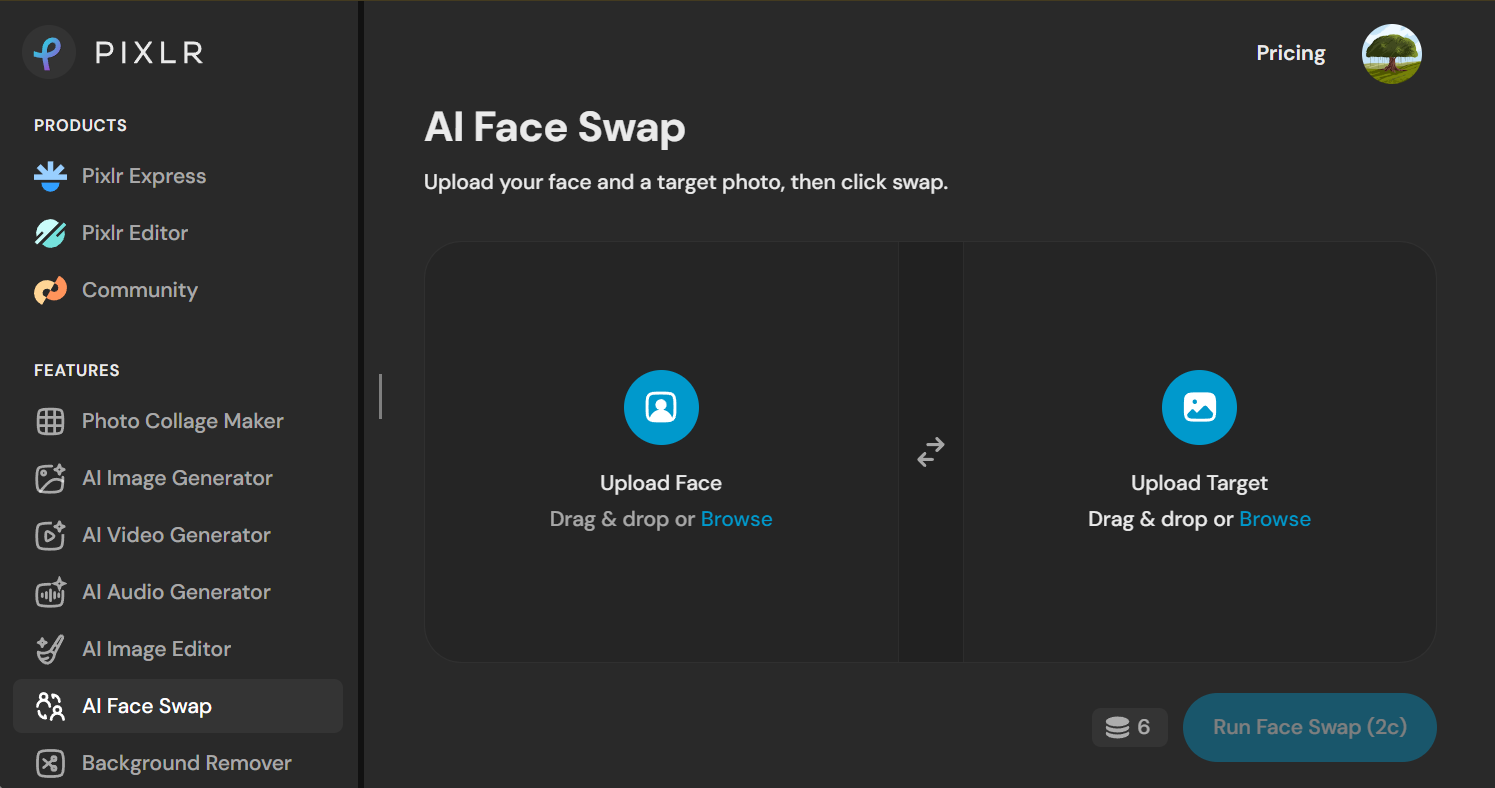
Step 1: Upload Your Images & Select the Face Swap Tool
Go to Pixlr’s face swap tool and upload your base photo. This is the image that keeps its background; only the face will change.
Step 2: Choose Source and Target Faces
Upload the face you want to use, or pick one of Pixlr’s templates. Then confirm which face in your uploaded photo should be replaced.
Step 3: Download and Fine-Tune Your Result
Click Run face swap and preview your result. Each swap costs 2 credits, so keep an eye on your balance if you’re on the free plan. If you want to touch it up, like adjusting color or cropping, you can jump straight into Pixlr’s editor since it’s built into the same platform. Then download your finished photo.
Final Verdict: Is Pixlr AI Face Swap Worth It in 2026?
Based on our testing, Pixlr’s face swap does a solid job on simple, front-facing photos, and it’s convenient if you’re already using Pixlr for other editing work. But it’s clearly a secondary feature, not the platform’s main focus. There’s no video or GIF face swap, no dedicated multi-face mode, and your AI credits get split across every other tool on the platform.
If you need face swap for video or GIFs, Pixlr won’t be able to help. EasyFaceSwap covers both photo and video face swap for free, with no watermark and no sign-up, which makes it a simpler starting point if Pixlr’s limits get in your way.
Frequently Asked Questions
What is Pixlr Face Swap Used For?
People use it for memes, personalized photos, social media content, and simple creative projects where you want to place one face onto another photo.
Is Pixlr Face Swap Free or Paid?
It’s free to start, with limited AI credits included in the free plan. Each photo swap used 2 credits in our testing, and paid plans, starting at $2.49 a month, give you more credits and remove ads.
Can I Use Pixlr Face Swap on Mobile?
Yes, Pixlr runs in a mobile browser and also has apps for iOS and Android, so you can use face swap without a computer.
How Realistic Are Pixlr Face Swap Results?
In our tests, front-facing photos looked fairly natural. Angled or side-profile faces were noticeably less convincing, with more visible artifacts around the jaw and hairline.
Does Pixlr Face Swap Work With Videos or Only Photos?
Only photos. There’s no GIF face swap and no automated video face swap on Pixlr’s main platform, even though it has a separate AI Video Generator for creating video clips from a prompt.
Can I Use Pixlr AI Face Swap for Commercial Projects?
You’ll want to check Pixlr’s current terms of service before using swapped content commercially, since usage rights and licensing details can change. A paid plan is generally required to remove watermarks and get full-resolution output.
Is Pixlr Face Swap Safe and Private?
Pixlr states that facial data uploaded for face swap is used only to generate your result and isn’t stored for other purposes. As with any face swap tool, only upload photos of yourself or people who’ve given you permission.