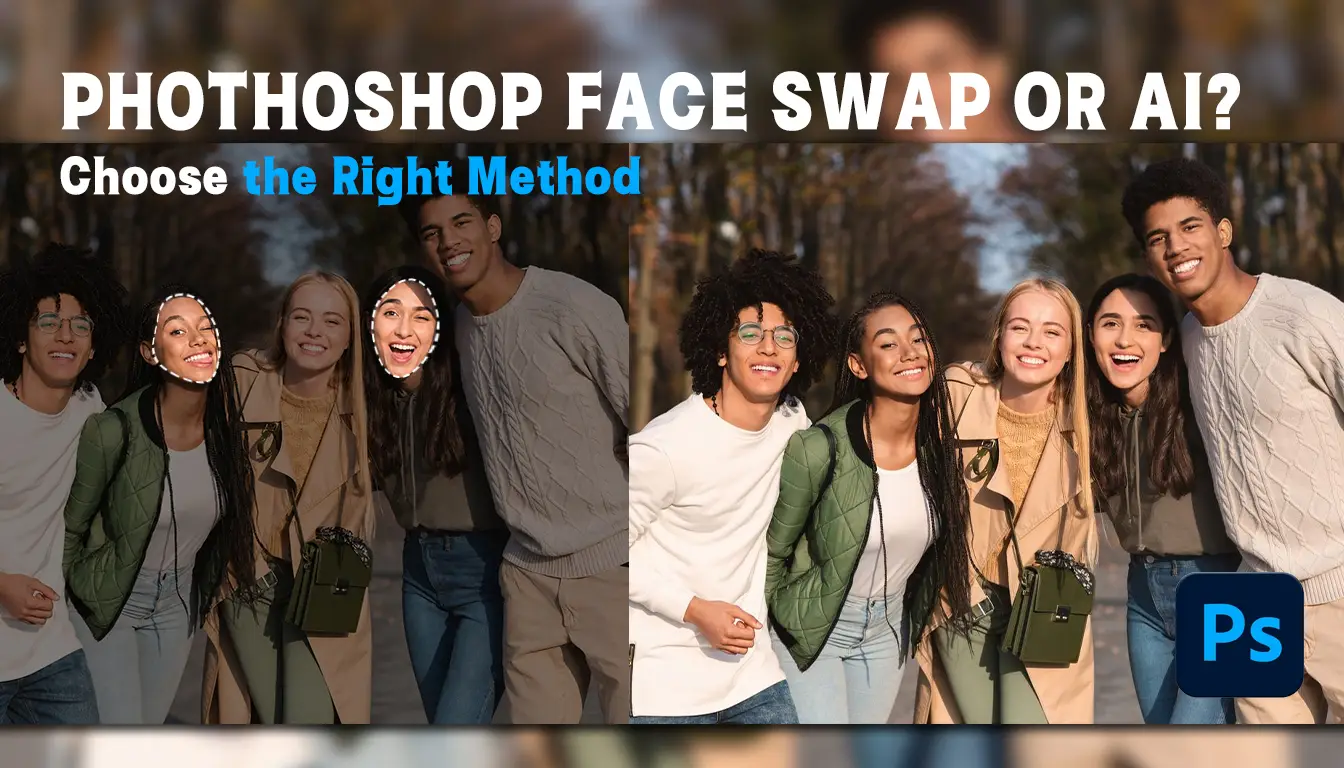
A Photoshop face swap used to be the standard way to put one person’s face into another photo. It still works, but first you have to install a large editing program, learn layers and masks, and fix the result by hand. If you only want to make a movie poster, meme, social photo, short video, or GIF, that is a lot of work. With EasyFaceSwap, the modern route is simpler: add the source face and target, then let AI handle the swap.
What to Know About Photoshop Face Swap
Photoshop is a powerful editor, but power is not the same as convenience. Before starting a Photoshop face swap, you need to download and install the software, sign in, and find your way around an interface packed with panels and tools. That is normal for a daily editor. For one funny picture, it is unnecessary friction.
Then comes the learning curve. You need selections, layers, opacity, masks, brushes, color adjustments, and image sizing. A beginner can follow a tutorial and still get a face that looks pasted on because the edge is too hard, the eyes are misaligned, or the skin tone does not match the neck.
The work starts over with every picture. A mask that fits one face will not fit the next. Color corrections for an indoor portrait will not suit an outdoor scene. Even after learning the Photoshop face swap process, you must make fresh decisions for every image.
That effort makes sense for advertising, high-end photography, or a carefully retouched portrait where every detail matters. A professional may need to preserve exact skin texture, rebuild a hairline, or control the light on one cheek. Photoshop remains valuable at that level. Most everyday swaps do not require it.
How a Traditional Photoshop Face Swap Works
A basic Photoshop face swap begins with two photos: one supplies the face, while the other supplies the body and scene.
Select and copy the face
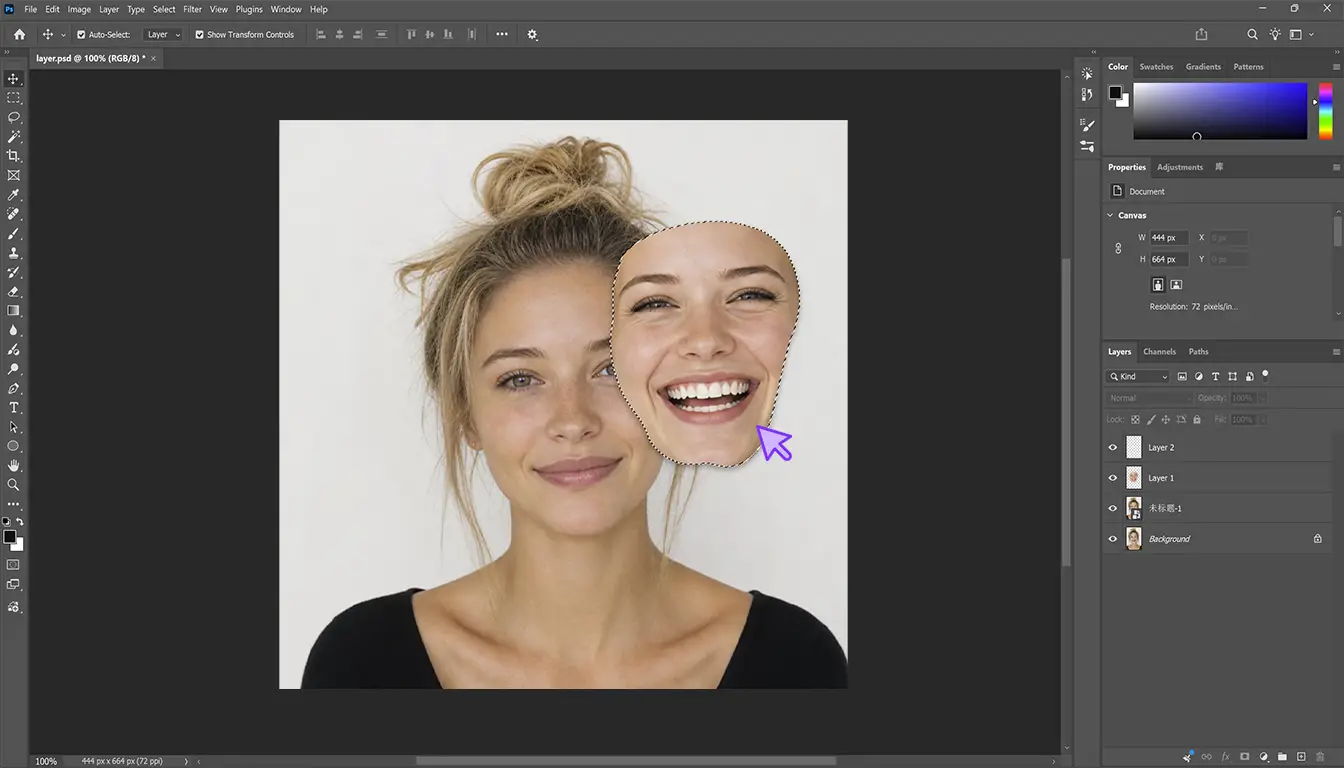
Open both files, draw a selection around the source face, and paste it into the target as a new layer. The selection often includes the eyes, nose, mouth, and cheeks rather than the whole head.
This gets tricky when hair crosses the forehead, glasses touch the cheeks, or the face turns sideways. A loose selection carries unwanted background into the target; a tight one can cut into the skin and leave an obvious edge.
Resize and align the features
Lower the pasted layer’s opacity and move it over the target. The eyes, nose, and mouth must sit in believable positions, so you may need to resize, rotate, or reshape the face.
A Photoshop face swap can look wrong when the source faces forward but the target turns sideways. Differences in expression or face shape turn a quick swap into a manual compositing job.
Blend the edge with a mask
Add a layer mask and use a soft brush to blend the forehead, cheeks, and jaw into the target. In plain terms, you are removing the border so the face stops looking like a sticker.
Remove too little and the original edge stays visible. Remove too much and the target face shows through. Hairlines, beards, ears, and jawlines usually need extra attention.
Match color and light
Finally, adjust brightness, color, and contrast until the face fits the neck and scene. A face shot in cool daylight will stand out on a body lit by a warm lamp. Facial hair and strong shadows add work.
Photoshop can produce an excellent result in experienced hands. The issue is not quality. It is that a Photoshop face swap asks an ordinary user to learn a professional workflow for something AI can often complete automatically.
Photoshop Face Swap vs EasyFaceSwap
Imagine the same project in both tools: placing a clear portrait onto a movie-character image.
In Photoshop, you select and copy the face, resize it, align the features, create a mask, clean the edges, and match the color. If the jaw or hairline looks strange, you go back and refine it. You get excellent control, but every part is your responsibility.
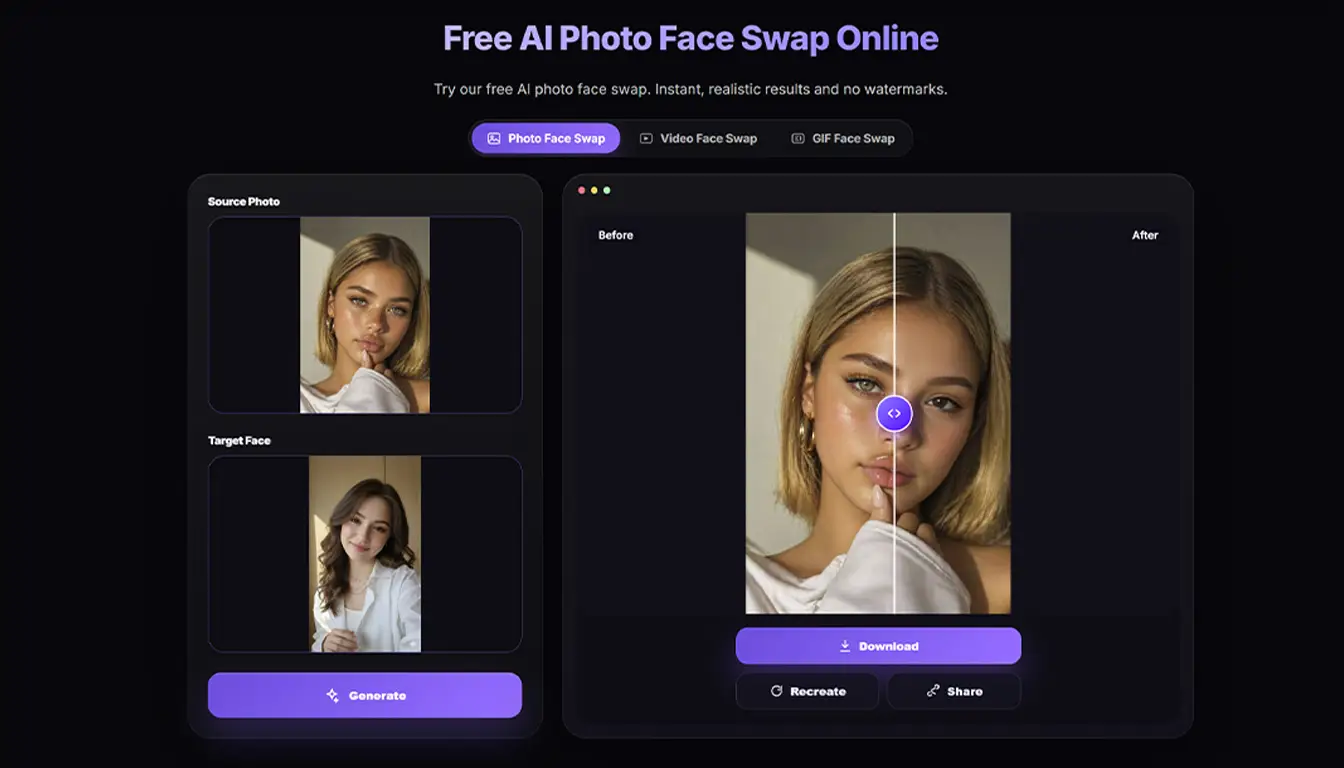
With EasyFaceSwap, you choose the source face and target image, then generate the swap. The software handles placement and blending. You still decide whether the result works, but you do not build it layer by layer.
| Comparison | Photoshop | EasyFaceSwap |
|---|---|---|
| Setup | Download, install, and learn the workspace | Open the tool and upload files |
| Face placement | Resize and align manually | Handled automatically |
| Edge blending | Paint a layer mask | Processed automatically |
| Color matching | Usually manual | Included in generation |
| Fine control | Very high | More limited |
| Photo use | Detailed retouching | Quick everyday swaps |
| Video and GIF use | Impractical for most casual users | Dedicated workflows available |
| Best for | Skilled editors and precision work | Beginners and everyday creators |
Where Photoshop still wins
Photoshop excels when you need exact control. If one small area is wrong, you can edit it without generating the entire image again. You can keep a wrinkle, rebuild part of a hairline, correct one patch of skin, or control exactly how the source blends with the target.
That matters in professional photography and commercial retouching. If an image will be printed large, inspected closely, or built from difficult source material, a skilled editor can make precise choices an automatic tool may not offer. AI is not an honest replacement for every specialist job.
Why AI is practical for most people
Most users are not preparing a beauty campaign or magazine cover. They want to become a movie character, make a joke for friends, personalize a travel image, or create social content. For those jobs, EasyFaceSwap can replace the Photoshop face swap workflow without removing control the user truly needs.
There is no large editor to install and no reason to master masking for one image. The workflow is easier to repeat, too. Pick another target and generate again instead of rebuilding the project from scratch.
EasyFaceSwap Goes Beyond a Photoshop Face Swap
A Photoshop face swap is usually a single-photo project. EasyFaceSwap extends the idea to the formats people now share every day.
Photos, posters, and memes
For still images, EasyFaceSwap suits movie posters, character portraits, travel pictures, social posts, and reaction memes. You can test an idea without manually cutting around the cheeks and forehead. If you want to try another target, you are not discarding a long editing session.
Short videos
Video is where the old Photoshop face swap approach falls furthest behind. Even a short clip contains many frames, while the face turns, blinks, smiles, and speaks. Adjusting those changes manually takes far more effort than most social content is worth.
EasyFaceSwap treats the moving face as one task. That makes it practical to personalize short clips, movie moments, and social videos without editing frame by frame.
Reaction GIFs
A GIF lasts only seconds but still contains a sequence of images. Replacing a face across those frames and rebuilding the loop turns a quick joke into a tedious animation project.
EasyFaceSwap makes the format accessible without timelines or frame-by-frame edits. It is a clear example of why Photoshop feels outdated for casual swapping: the manual effort is much bigger than the idea.
Photoshop Face Swap FAQs
Is Photoshop still good for swapping faces?
Yes, especially when an experienced editor needs detailed control over one important image. Photoshop lets you adjust individual edges, colors, textures, and facial details. For casual photos, memes, videos, and GIFs, its setup and learning time are usually excessive.
Does Photoshop have an automatic face swap button?
Photoshop does not provide the simple source-face and target-media workflow of a dedicated swapping service. Assisted features may help with parts of the job, but users generally still position, blend, and refine the face with layers and editing tools.
Can Photoshop swap a face in a video?
Technically, Photoshop can work with frames, but it is not a practical first choice for consistent moving footage. Video includes changing angles and expressions. A purpose-built AI video workflow is much easier for an everyday creator personalizing a short clip.
What is the easiest Photoshop face swap alternative?
EasyFaceSwap is the easiest option for most beginners. Instead of constructing an image from layers, you provide a source face and target. The service handles the core placement and blending process.
Why Is EasyFaceSwap More Practical for Everyday Face Swaps?
Photoshop is useful for carefully retouching a single photo, but EasyFaceSwap is more practical for everyday creation. It provides dedicated workflows for photos, videos, and GIFs, so users do not need to build layers, blend masks, or edit moving content frame by frame. Simply upload the target media and source face to create memes, short clips, and reaction GIFs with far less manual work.
Conclusion
A Photoshop face swap is worth learning if photo editing is part of your job or you need to perfect a high-resolution image by hand. It offers control that automatic software cannot fully replace.
For almost everyone else, it is a long route to a simple result. Downloading Photoshop, learning its tools, and manually rebuilding every swap makes little sense when AI can handle ordinary photos in a few steps and supports formats that are awkward to edit manually.
If you are making social images, short videos, or memes, EasyFaceSwap can comfortably replace the old Photoshop face swap workflow. To personalize photos without editing individual frames, try the online GIF face swap and turn a simple idea into something shareable without opening Photoshop.