How to Switch Region When Paying for a Subscription
Last Updated: November 3, 2026
Each country or region on the subscription payment page has its own payment method. If you don’t see the method you want, switch the page to your country or region.
Crypto isn’t available for subscriptions. To pay with USDT or USDC, buy a credit pack instead: see the crypto payment guide.
1. Open the payment page
- Sign in, open Pricing, go to the subscription plans and click the button on the plan you want.
- Checkout opens in a new tab. If it asks you to choose, select Crypto & local payment and click Pay. Otherwise it goes straight to the payment page.
2. Switch to your country or region
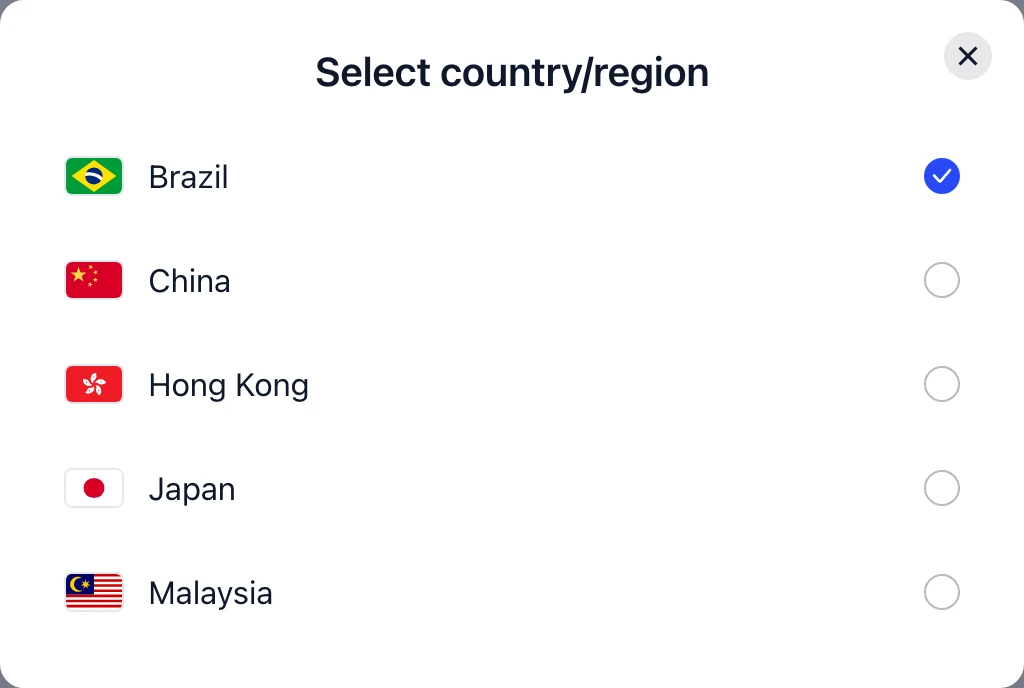
- Next to your order at the top of the payment page, click the region button. It shows the current region, such as Brazil.
- In Select country/region, choose your country or region.

3. Check the method and continue
The page now shows the payment method for that country or region. The example below is Japan.
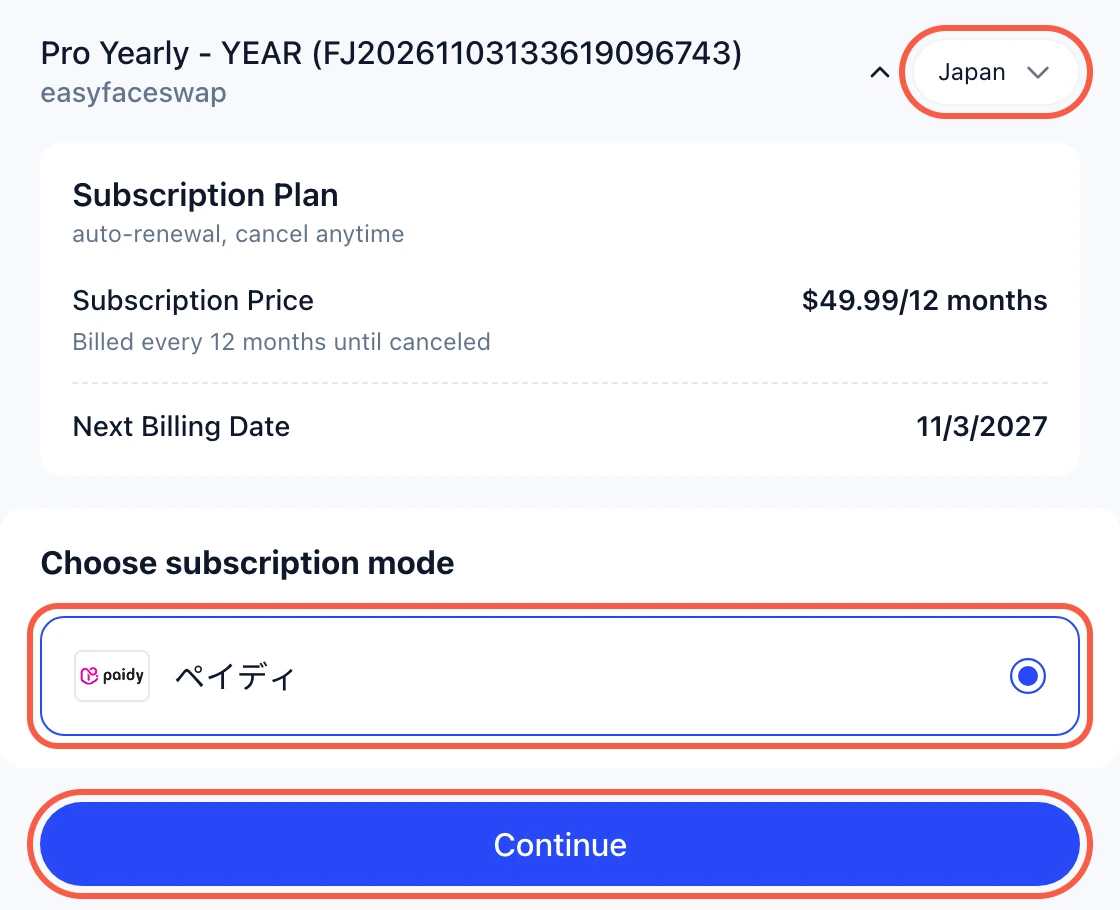
- Check that the method you want is selected.
- Click Continue and follow the steps on screen.
Your subscription starts automatically once the payment is confirmed, and the EasyFaceSwap tab you bought from updates on its own.
4. Methods by country or region
These are the methods the subscription payment page offered on November 3, 2026:
| Country / region | Payment method |
|---|---|
| Brazil | PIX |
| Japan | Paidy |
| Malaysia | Touch ’n Go |
| Mainland China | Alipay |
| Hong Kong | AlipayHK |
Methods can change, so the payment page always shows the current list for your order.
5. Need help?
- Your country isn’t listed? Choose Credit / debit card at checkout if it’s offered, or buy a credit pack instead: see the local payment guide.
- Subscription not active 30 minutes after paying? Email [email protected] with your order number (shown on the payment page, it starts with FJ) and the payment reference from your wallet or bank.